These are some basic routines I go over during a Proxmox VE install. Putting them down here so I won’t forget about them. Information might change with time.
Updates
2026/08/19
I am no longer using separate disks for VMs for a long while. This post is updated to reflect that. More info is also added about reserving space at the end of the disk, as well as the new Proxmox VE notification system. The email setup part of this post is now obsolete.
Install
File System
During install you get to choose which file system you want to use. I’m going with a ZFS mirrored (RAID1) setup for Proxmox VE itself. Note that by saying Proxmox VE itself, I mean that VMs / Containers will run on other disks. Will touch on this later.
This is no longer true. I am using a single pool for both the OS and VMs. I will elaborate more about this here.
Why ZFS? Basically, it’s great. If you want to know more about it, check out -
- It’s Foss: What is ZFS? Why are People Crazy About it?
- Level1Linux@YouTube: What Is ZFS?: A Brief Primer
Why mirrored
- Losing one ssd on Proxmox VE is acceptable. I do not expect to lose both SSDs at the same time.
- RAIDZ needs at least 3 drives, while mirroring only needs 2.
- For workloads prioritizing IOPs, more VDEVs are preferred. Though this might not matter for Proxmox VE itself, it does matter for VMs and their pool, as will be discussed later.
ZFS settings during install
Read more here as well as references below.
ashift = 12
The ashift value of the pool defines the minimum block size of the pool. As I have drives with 4K physical sectors (see here), ashift = 12 corresponds to 4K sectors (2^12 = 4096). Even if you have a drive that uses 512 byte physical sectors, which is rare, using ashift = 12 is still fine. Note that once the ashift value is set for a pool, there is no going back unless you destroy the pool, which would mean reinstalling Proxmox VE. This is also why using ashift = 12 is recommended even for physical 512 byte sector drives, as if you add a 4K sector drive you will encounter performance issues.
However, if you have those rare 8K sector SSDs - set ashift = 13. See also on this topic: ArchWiki
compress = lz4
LZ4 does not tax on IO performance but still compresses. Simple as that.
checksum & copies
Leave as-is.
hdsize
Normally it should be left at default, as this will let ZFS use all the free space it can use. However, if you want to leave some space for partitioning later, you can set it here. For example, because of complications regarding swap on ZFS (you shouldn’t), leave some space to add a swap partition later. It could also help in the case where you might have the possibility of needing to replace the drive with a smaller one, as stocks of the exact same drive are not guaranteed from a homelab perspective. Read more about this specific problem here: Shrinking a Proxmox VE Installation on ZFS.
Set it to a email address you own, as alerts will be sent here. This can be modified later.
Hostname
This cannot be modified later.
Although the hostname cannot be modified later, the domain can still be changed.
After Install
Creating another zpool for VMs and Containers
Check if your pool is using entire disks - run zdb and find whole_disk.
It is recommended to point ZFS at an entire disk (ie. /dev/sdx rather than /dev/sdx1), which will automatically create a GPT (GUID Partition Table) and add an 8 MB reserved partition at the end of the disk for legacy bootloaders. Source: ArchWiki There is also a reason regarding IO, however I was unable to find documentation sources for this. Source: Reddit
This is not entirely true. The ‘performance’ part this mentions is about 4K alignment, and as long as that is done correctly, which the installer should do when partitioning, there shouldn’t be any problem with performance.
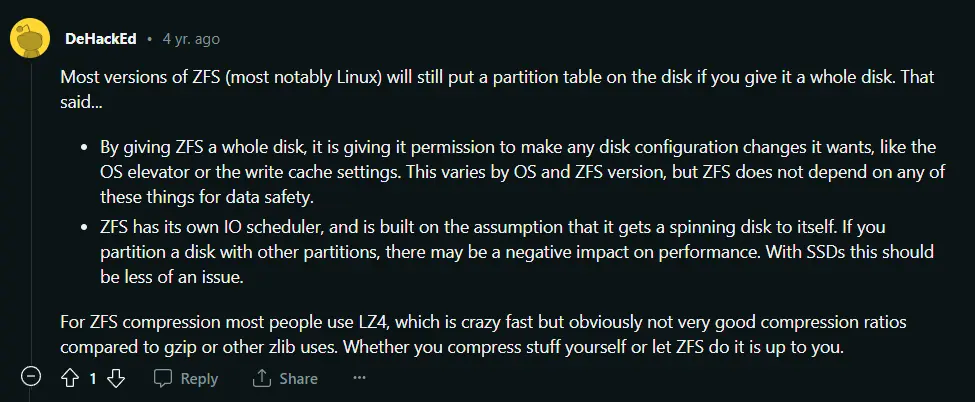
Also, I don’t like the look of having boot & EFI & ZFS partitions on a single disk, so I would rather have dedicated disks for storage.
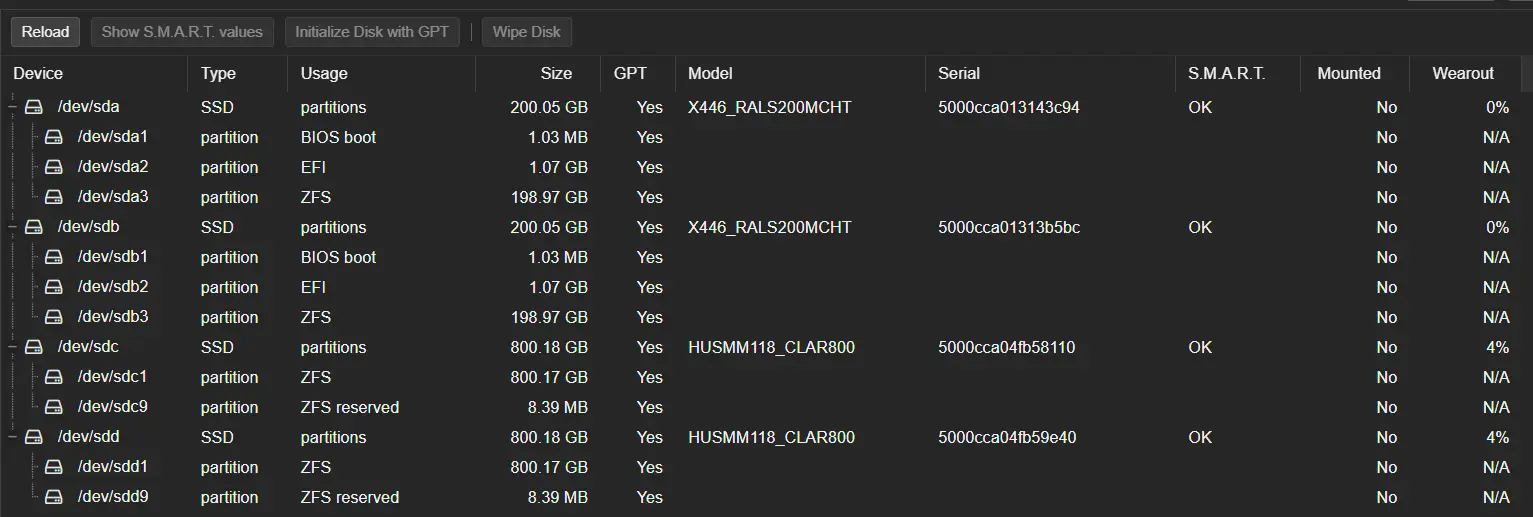
I use mirrored setups for this - not RAIDZ. Reasons have been listed above.
I am still using mirrored setups for Proxmox VE. Mirrors generally offer better random I/O performance than RAIDZ vdevs, making them a better fit for VM storage. While 50% storage effiency might seem low if you’re used to no redundancy at all, it is still good enough. Also, VMs don’t really take up that much space, as long as you have a separate NAS or even just a separate ZFS pool with HDDs that utilize RAIDZ.
However, I am no longer using separate pools for the OS itself and VM disks. In theory, it is a good idea to separate the operating system from the stored data to help with backups and recovery. However, I find that with Proxmox VE, it is not really necessary while adding complexity. Proxmox VE offers ample options for easily backing up and restoring VMs, while a significant portion of the system’s configuration is synced across the cluster. As long as you keep note of changes made that is not synced and the network settings, recreating the system should be easy.
I consider it to be unnecessary complexity because having separate pools won’t necessarily make recovery easier. Having both disks fail in a mirror is rare. Having only the system pool fail while the data pool stay intact is an even rarer specific failure scenario. What’s more common is SMART errors being neglected, or PSU related hardware failures causing all drives in the chassis to fail. Of course, there is the possibility that there is crucial data on the system, where the difference between backups are important enough. However, separation does not really eliminate this risk, since both of the drives in the data pool could still fail, while the separate system pool introduces another independent storage failure domain that also needs to be maintained and recovered.
Another advantage to separation that is often brought up is ease of reinstalls. However, reinstalls with Proxmox VE are already extremely simple. With a cluster you can migrate VMs between hosts to achieve minimal downtime and essentially no data loss, and even in constrained environments like a single dedicated server in one region, where clusters are not recommended, the new Proxmox Datacenter Manager allows migration between clusters, so you can even temporarily migrate VMs to your home lab or a test environment. In the extreme condition that neither of these are viable, assuming you have a backup target configured, which you should, reinstalling a host without a cluster is as simple as restoring from a backup, which can all be done quickly and easily.
Finally, it is sometimes said that separation can help with reducing costs, as the boot drive can utilize lower grade hardware. However, that is only inherently true in systems that typically separate between OS and data, such as NAS systems. With Proxmox VE, sharing the same pool can actually help with costs, as you don’t need another set of drives, and that means less drive bays. The wear caused by the system is negligible compared to the VMs. This is especially helpful with non-enterprise users, where smaller / rental machines often do not offer dedicated disks for boot, or do not have the drive bays in mini machines. Sharing helps in standardizing the setup across the organization.
Separation is not backups. This is why for a long time, I have turned to a single pool configuration. For my Proxmox installations, I don’t find separate OS and VM pools worth the additional complexity. I’d rather spend the extra money and hardware on backups than on separating the Proxmox installation from VM storage.
ZFS trim and scrub
This is actually already enabled by default.
root@ayanami:~# cat /etc/cron.d/zfsutils-linux
PATH=/usr/local/sbin:/usr/local/bin:/sbin:/bin:/usr/sbin:/usr/bin

# TRIM the first Sunday of every month.
24 0 1-7 * * root if [ $(date +\%w) -eq 0 ] && [ -x /usr/lib/zfs-linux/trim ]; then /usr/lib/zfs-linux/trim; fi

# Scrub the second Sunday of every month.
24 0 8-14 * * root if [ $(date +\%w) -eq 0 ] && [ -x /usr/lib/zfs-linux/scrub ]; then /usr/lib/zfs-linux/scrub; fi
Postfix settings so alert emails won’t go to spam
I have my own email server with mailcow. If you use a different server / provider, your settings may vary.
This part is now obsolete. The new Proxmox VE notification system provides much more elaborate options such as SMTP and Webhook, while also providing syncing the settings between nodes in a cluster. Check out the documentation about this here.
Set email from address
Go to Datacenter -> Options -> “Email from address”. Enter your email from address here.
Get prerequisites
apt-get install libsasl2-modules
main.cf
nano /etc/postfix/main.cf
Comment out the relayhost = line.
Add the following at the end.
relayhost = mail.relay.host:587
smtp_use_tls = yes
smtp_sasl_auth_enable = yes
smtp_sasl_password_maps = hash:/etc/postfix/sasl_passwd
smtp_sasl_security_options = noanonymous
smtp_sasl_tls_security_options = noanonymous
smtp_tls_security_level = encrypt
sasl_passwd
echo "mail.relay.host your-email@gmail.com:YourAppPassword" > /etc/postfix/sasl_passwd
chmod 600 /etc/postfix/sasl_passwd
postmap /etc/postfix/sasl_passwd
postfix reload
Send testmail
mail -s Testmail youremail@domain.com
Testmail
.
Check mail queue
root@ayanami:~# mailq
Mail queue is empty
Troubleshooting
If you have errors like -
root@proxmox:~# mailq
-Queue ID-  --Size-- ----Arrival Time---- -Sender/Recipient-------
43B2E100F17    1399 Mon Nov  1 18:36:56  root@proxmox.local
(SASL authentication failed; cannot authenticate to server smtp.sendgrid.net[13.114.210.107]: no mechanism available)
Then you might have messed up the following -
- apt-get install libsasl2-modules
- postmap /etc/postfix/sasl_passwd
- Wrong account / password
Use postqueue -f to retry the queue.
System and ZFS alerts
If you have your correct email set at installation, you have nothing else to worry about. All alerts will be sent to root@proxmox, and then forwarded to the set email address.
If you need to fix it, you can find it at Datacenter -> Permissions -> Users -> root -> E-Mail.
To test them out, just pull your drives out and wait for a email alert to arrive.
Enable PCI-E passthrough
Make your modifications using the commmand line.
Follow these guides:
- ServeTheHome: How to Pass-through PCIe NICs with Proxmox VE on Intel and AMD
- Proxmox Documentation: PCI(e) Passthrough
- Proxmox Documentation: PCI Passthrough
Disable Conntrack for asymmetrical routes
Create / modify /etc/pve/nodes/<nodename>/host.fw and add the following:
[OPTIONS]
nf_conntrack_allow_invalid: 1
Then restart the Proxmox VE firewall.
pve-firewall stop && pve-firewall start
Source: blog.swineson.me
References & Sources
- Proxmoxのpostfixを設定する
- Techno Tim: Set up alerts in Proxmox before it’s too late!
- ServeTheHome: Proxmox VE E-mail Notifications are Important
- Reddit: Proxmox with ZFS + SSDs: Built-in TRIM cron job vs zfs autotrim?
- Proxmox Forum: ZFS TRIM on Proxmox
- Reddit: Formatting ZFS to use whole disk vs. partition?
- ZANSHIN DOJO: Proxmox ZFS Performance Tuning
- Proxmox Documentation: ZFS on Linux
- Proxmox Documentation: ZFS: Tips and Tricks
- Proxmox Documentation: Advanced ZFS Configuration Options
- It’s Foss: What is ZFS? Why are People Crazy About it?
- high-availability.com: ZFS Tuning and Optimisation
- ArchWiki: ZFS
- Level1Linux@YouTube: What Is ZFS?: A Brief Primer
- Techno Tim@YouTube: Set up alerts in Proxmox before it’s too late!
- ServeTheHome: How to Pass-through PCIe NICs with Proxmox VE on Intel and AMD
- Proxmox Documentation: PCI(e) Passthrough
- Proxmox Documentation: PCI Passthrough
- blog.swineson.me: Proxmox VE中虚拟机非对等路由出站数据包被丢的情况分析
Last modified on 2026-08-28